

Pay using PayPal to send Bitcoin with Credit Card
This guide will show you how to use PayPal in order to pay with Bitcoin through a credit card/bank account on PayPal.
- *This guide is currently only for US residents.
- *Use the bitcoin address only located on our website https://apollotvsgroup.com
- *Don’t send bitcoin to addresses someone provided you on Discord/Telegram, only from our checkout page.
- *Do not send Bitcoin CASH, only BITCOIN is allowed, else your money will be gone.
- Create your personal PayPal Account. (You can skip to step #1 if you already have an account with PayPal)
- Step 0.1
Go to https://www.paypal.com/. At the starting home page, you will see the Sign Up button; press it.
- Step 0.2
You will be moved to the page where you can choose your account type. Choose Personal Account and then click Next.
- Step 0.3
Choose the Country you live in and press Get Started.
- Step 0.4
You will be asked for a Valid Phone Number, so you can confirm the creation of the account via Text SMS.
Fill in the number you can receive Text SMS on and press Next.
- Step 0.5
Moving to the next page, you will receive an SMS on your phone, which you have to type in.
Press ‘Send Code’ if you haven’t received it at first try.
Press the pencil icon if you want to edit the phone number.
PayPal will move to the next page after this automatically.
- Step 1
Log in to your PayPal Account.- Step 1.1
Go to https://www.paypal.com/. At the starting home page, you will see the Log In button; press it.
- Step 1.2
You will be moved to the page where you need to fill in your Email Address and Password. After filling in the correct details, press Log In.
- Step 1.3
PayPal will now ask you to confirm your phone number with a code.
Check if the number displayed is correct and press Text Code, or Call You To Confirm if you prefer it that way.
(Press Change if you want to edit the number). PayPal will redirect to your account page after this.
- Step 1.1
- Step 2
To buy crypto with PayPal, you need to have funds on a PayPal Balance, Linked Debit Card, or Linked Bank Account. Below are the steps to
Link a debit card or Bank Account to your PayPal. (If you already have the option that is suitable for you, you can skip this step.)- Step 2.1
At the bottom right of your account page, you will see the ” Link a Card” or Bank option. Press it. You will be redirected to a page where you can choose between a linking card or a bank account.
- Step 2.2
Linking your Debit Card to PayPal.
Choose the option for Link a debit or credit card.
- Step 2.3
At this step, you need to fill in your Debit Card information, and after doing so, press Link.
After this, your card will be linked to PayPal.
Reminder: Using cryptocurrency through PayPal is not available Via Credit Card. In some cases, in order to ensure you’re the card owner, PayPal may ask you to confirm your card. If you see a ‘confirm credit/debit card’ link in the card details section of your PayPal Wallet, you’ll need to confirm your card before you can use it with PayPal. If you don’t see this link, you can begin using your card right away.
PayPal will make a small charge to your card and generate a confirmation code on your card statement. After the card is confirmed, PayPal will immediately refund the charge back to your card.
Here’s the detailed Video Explanations for linking cards: https://www.paypal.com/us/cshelp/article/how-do-i-link-a-debit-or-credit-card-to-my-paypal-account-help155
- Step 2.4
Linking your Bank Account to PayPal.
Choose the option for Link a bank account.
- Step 2.5
You have to find the Bank you want to link the account from. Press it after finding it.
- Step 2.6
After choosing a bank, you will be moved to the page where you need to fill in your Username and Password for your bank account.
After filling in the correct details, press Agree and Link.- You may need to confirm your bank account before using it.
Here’s the detailed Video Explanations for linking bank accounts: https://www.paypal.com/us/cshelp/article/how-do-i-link-a-bank-account-to-my-paypal-account-help183
- Step 2.1
- Step 3
Buying Bitcoin cryptocurrency through PayPal.- Step 3.1
Go to Dashboard, where you will see an option for Crypto. Press it.
- Step 3.2
You will be redirected to the page to choose a suitable cryptocurrency. Choose “Bitcoin“.
- Step 3.3
After choosing Bitcoin, you will be moved to the next page, where you can press Buy.
- Step 3.4
If it’s your first time buying cryptocurrency with PayPal, you need to confirm some additional information.
The required identifying information is: name, physical address, date of birth, and taxpayer identification number.
In that case, press Continue.
- Step 3.5
After you’ve confirmed additional information, you will be moved to the page to buy Bitcoin.
You can enter the amount of USD equivalent of Bitcoin you want to buy.
- Step 3.6
After this, you have to choose the suitable option for you to buy Bitcoin from. (PayPal Balance, Debit Card Linked to PayPal or Bank Account Linked to PayPal). Once you choose, press Next.- If you don’t have any payment method added, you can add one now
- If you don’t see your available payment options, press Don’t see all off your payment methods?

- Step 3.7
After this, you will be moved to a page where you will see the exact amount of Bitcoin, including fees. Press Buy Now.
The amount you bought in Bitcoin will appear in your PayPal Wallet.
- Step 3.1
- Step 4
Sending Bitcoin with PayPal to an external wallet.- Step 4.1
Once you have enough amount of Bitcoin, you can send it through PayPal to an external wallet, outside of PayPal.
Move to Dashboard, where you will see an option to Send. Press it.- You may be asked to complete any additional ID verification steps. This process is generally only required once per user.
- You’ll need to enter an external crypto address if you want to transfer cryptocurrency out of your account. Copy and paste an address, manually enter it, or scan a QR code by tapping the QR code button to the right of the search box.

- Step 4.1
- Step 0.1
- Step 5
Go to our pricing page.
Visit https://apollotvsgroup.com/pricing/.
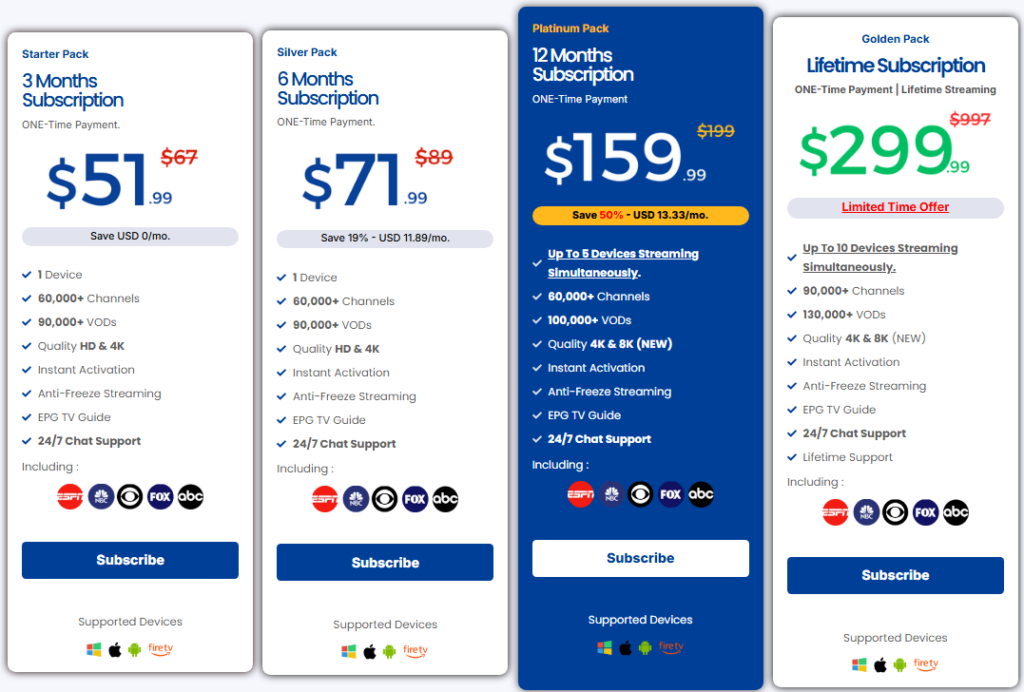
Choose your desired package (Starter, Silver, Platinum, or Golden Lifetime).
Fill in your information
Enter your email (this is where you’ll receive your streaming credentials after payment), billing details, and any notes. Review the order summary on the right (product, subtotal, total).
Proceed to BTCPay
Scroll to the Payment section, select BTCPay (Bitcoin, Lightning Network, …), then click Proceed to BTC Pay.
This redirects you to the secure BTCPay payment screen.
Copy the Bitcoin address & note the exact amount
On the BTCPay screen:
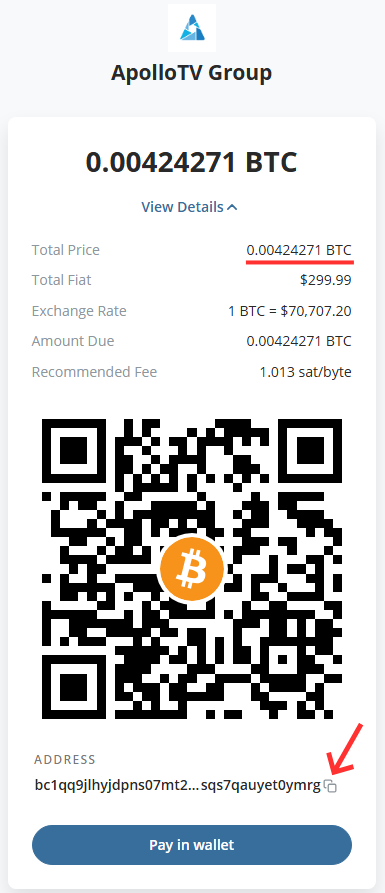
- Copy the long Bitcoin address (starts with “bc1q…”).
- Note the exact BTC amount you must send (shown as “Total Price” or “Amount Due”, e.g., 0.002226241 BTC). This matches your package price at the current exchange rate.
Go to PayPal and send Bitcoin:
- Open your PayPal app or go to paypal.com on your browser.
- Navigate to the Crypto section (usually under “Finances” or “Wallet” → “Crypto”).
- If you don’t have BTC in PayPal yet: Click Buy → Buy enough Bitcoin to cover the exact amount + a small buffer for fees (PayPal fees are typically 1–2%).
- Once you have BTC:
Click Send or Transfer → Send Bitcoin. - Paste the Apollo TV Group Bitcoin address you copied in step 4.
- Enter the exact BTC amount shown on BTCPay (or the USD equivalent if PayPal auto-converts — it will display both).
- Review the transaction (address, amount, estimated fee, arrival time).
- Confirm and send.
- After sending
- Wait for confirmation — PayPal Bitcoin sends usually process in minutes to 1 hour (faster if you choose priority).
- Once sent, email [email protected] immediately with:
- Your PayPal email or phone number is linked to the account
- A screenshot of the successfully sent transaction from PayPal (showing the confirmation screen with TXID, amount, address, and timestamp)
- We’ll verify the transaction on the blockchain and activate your subscription (usually within minutes to 1 hour).
If It Takes Longer Than 1 Hour
Email [email protected] with:
- Your order email
- PayPal transaction ID (TXID from the sent confirmation)
- Screenshot of the sent payment
- The BTC amount you sent
We’ll check and activate manually if needed.
—
>> Video Tutorial:
For a visual step-by-step guide on how to send Bitcoin from PayPal, watch this video: https://www.youtube.com/watch?v=56tarYqos7w
Follow the steps shown in the video carefully, but always use the exact Bitcoin address and amount displayed on our BTCPay checkout page (never copy any address or details from the video itself). After completing the send, email [email protected] with your proof of transaction (screenshot from PayPal showing the sent amount, address, and timestamp) as described in the next step.
